
Undo, redo and history basics
Step backwards and forwards through your edits, jump to an earlier state in the History panel and understand how much history is kept.
Every edit you make is recorded as a step. You can undo it, redo it, or jump straight to an earlier step.
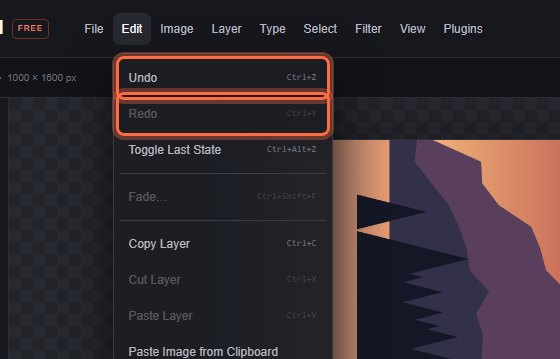
#Undo and redo
| Action | Menu | Keys |
|---|---|---|
| Undo the last step | Edit > Undo | Ctrl+Z |
| Redo a step you undid | Edit > Redo | Ctrl+Y or Ctrl+Shift+Z |
| Switch between the current and the previous step | Edit > Toggle Last State | Ctrl+Alt+Z |
On a Mac use ⌘ instead of Ctrl. The undo and redo arrows in the top bar do the same.
Toggle Last State switches to the step before the current one; press it again to switch back. Pressing it repeatedly bounces between those two steps instead of going further back, which makes it easy to compare before and after. Undo, Redo, a History jump or a new edit starts a fresh toggle from wherever the document is.
If you undo some steps and then make a new edit, the steps you undid are discarded and the new edit continues from there.
#Jump to an earlier state
- In the properties sidebar, open More panels > History.
- Each entry shows its number, the active layer, the document size and the number of layers. The current state is highlighted.
- Click an entry to return the document to that state. This is itself reversible: use Redo or click a later entry.
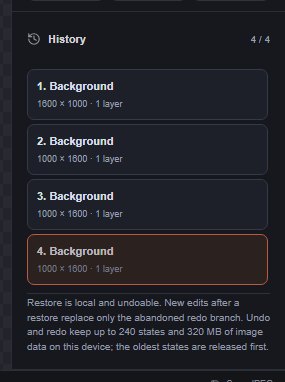
See History panel for more.
#How much history is kept
- While you work: up to 240 steps, limited by the memory the images in those steps use: 320 MB on desktops, 128 MB on phones and devices with 4 GB of memory or less, 96 MB on devices with 2 GB or less. When the limit is reached, the oldest steps are released first.
- After a reload: your draft saves a window of up to 24 recent steps (and up to 64 MB of their images) in this browser. Older steps stay in memory only and are not restored after a reload; when that happens, the History panel says which steps are saved on this device.
- In a project file: a downloaded
.pixelforgefile keeps the same recent window. See Project files.
To free memory, Edit > Purge Undo History… clears every earlier and later step and keeps only the current state. It asks for confirmation first and cannot be undone. It does not change your layers or delete the draft.
Still stuck? See Troubleshooting or report a problem.