
Artboards
Mark named areas of the canvas as artboards with the Frame tool, fit layers into them and export each one at its own size.
An artboard is a named rectangle on the canvas that you can export on its own, at its own size. Use artboards to prepare several crops or formats of the same design in one document, for example a square post and a banner.
#Add an artboard
- Select the layers that should appear in the artboard (see Find and select layers).
- Choose the Frame tool: press and hold (or right-click) the Crop button in the toolbar, choose Image > Frame tool, or press K repeatedly until it is selected.
- Drag a rectangle on the canvas. A bar appears above the canvas with the size in pixels.
- Type an Artboard name and pick a Background colour. The background fills transparent areas when you export the artboard.
- Click Add artboard, or Cancel to discard it.
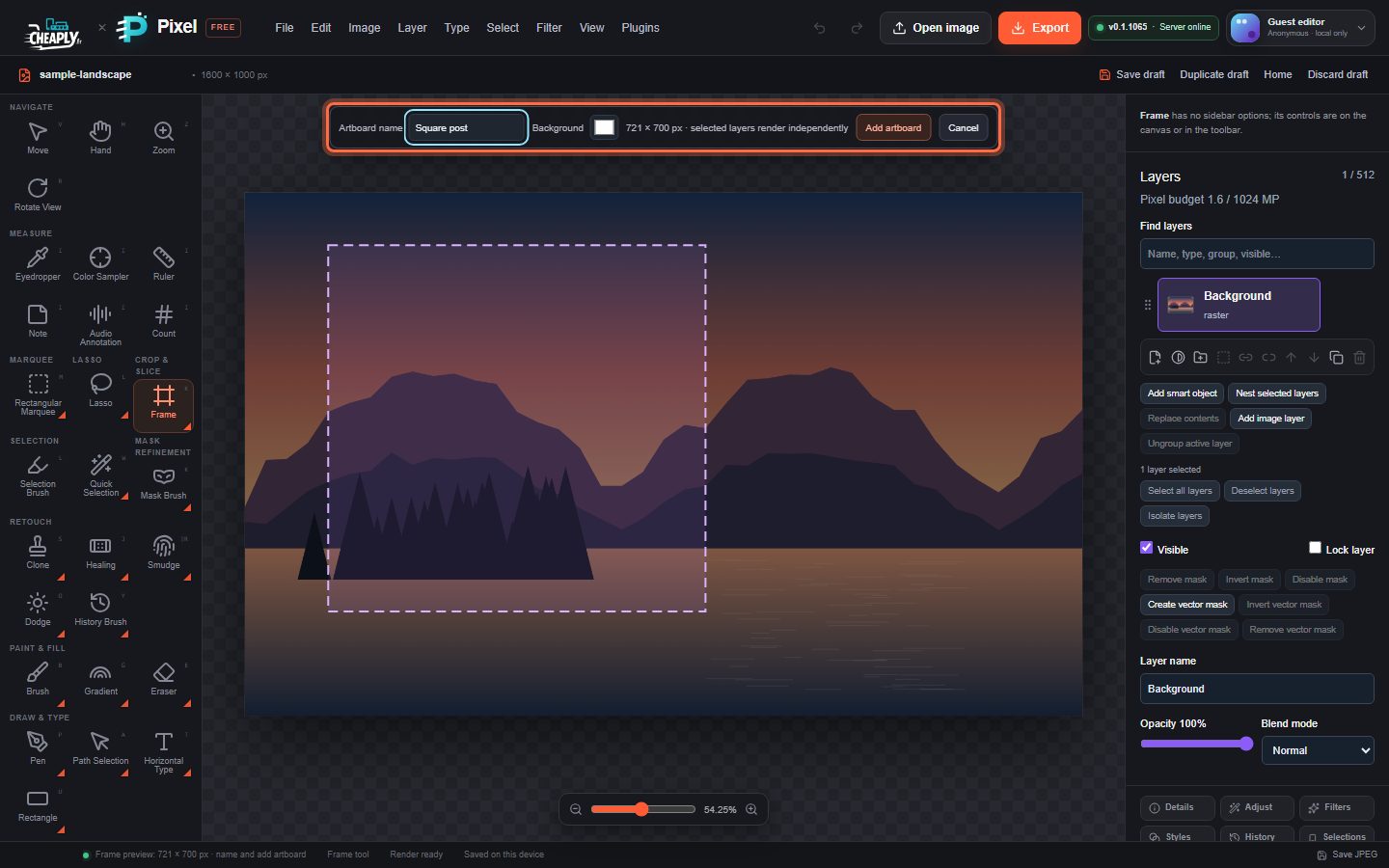
The artboard is outlined on the canvas with its name. A document can have up to eight artboards. For more about the Frame tool, see Slices and frames.
#Which layers an artboard shows
An artboard shows the layers that were selected when you added it. A new layer added directly above one of those layers joins the artboard too, and Fit active layer to artboard adds the active layer to it.
#Artboard controls
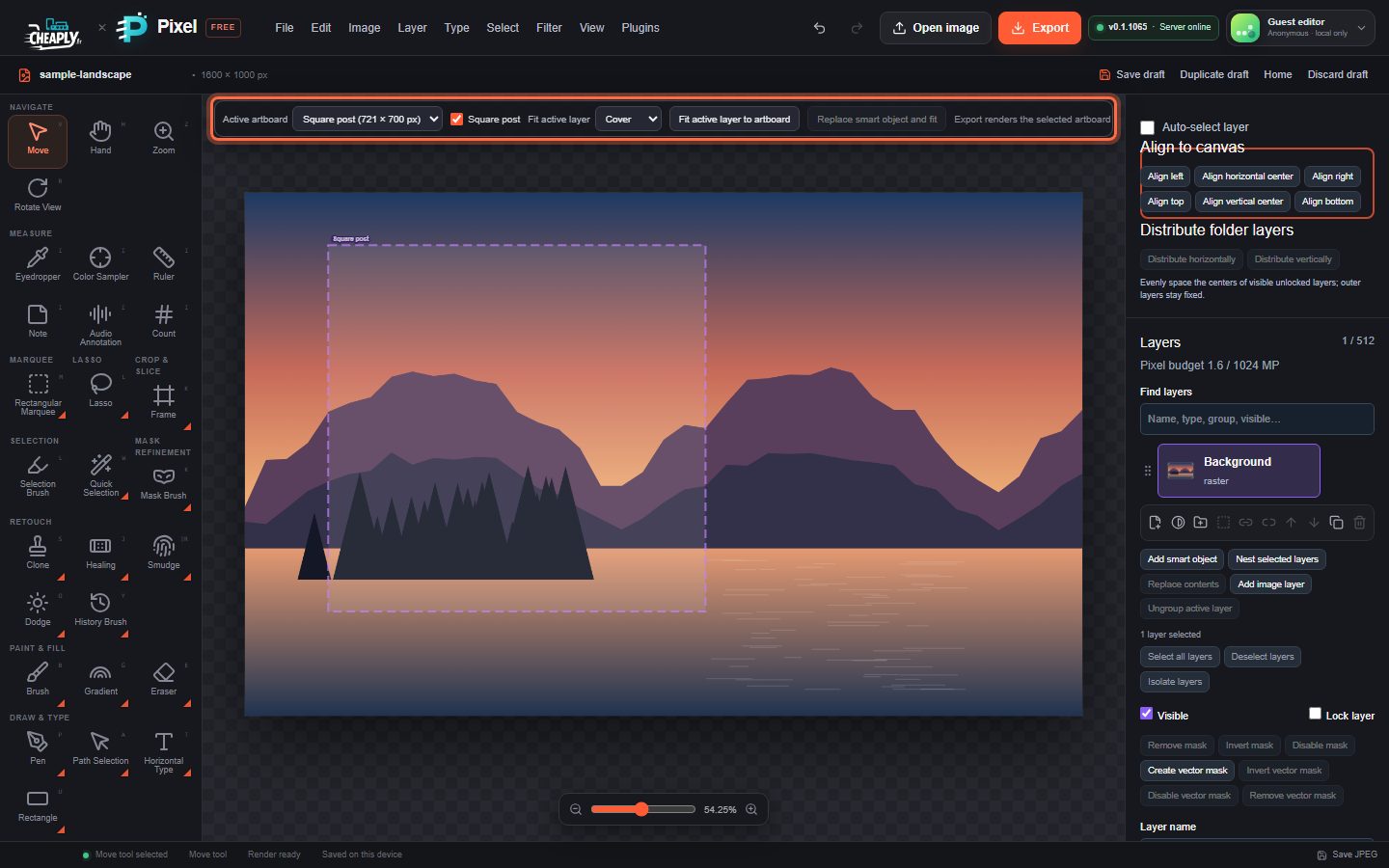
While a document has artboards, the Artboard controls bar sits above the canvas (it is hidden while you use the Type tools or a crop, slice or frame preview):
| Control | What it does |
|---|---|
| Active artboard | Chooses the artboard to work with and export. |
| Checkbox per artboard | Shows or hides that artboard. A hidden artboard cannot be active or exported. |
| Fit active layer | Scales and positions the active layer to the active artboard: Cover fills it (and may crop), Contain fits inside it, Stretch fills it exactly. Choosing an option applies it. |
| Fit active layer to artboard | Applies Cover fit. |
| Replace smart object and fit | For a smart object: choose a new image, which replaces its contents and is fitted to the artboard with Cover. |
Fitting and replacing are each one undo step.
#Export an artboard
Click Export (or use the File menu export commands). When the document has artboards, the export dialog has an Artboard list: choose the artboard, and PixelForge exports it as PNG, JPEG or WebP at the artboard's size. Each artboard is exported separately. See Export images.
#Limits
- There is no command to delete or resize an artboard. Undo removes a newly added artboard; to hide one, clear its checkbox.
- Artboards are areas of one canvas, not separate documents. Every artboard shares the same canvas size and layers; they cannot extend beyond the canvas.
- Cropping the canvas so that an artboard is completely outside removes it.
Still stuck? See Troubleshooting or report a problem.