
Character and paragraph settings
Style type with the Character and Paragraph settings: size, leading, tracking, scale, baseline shift, caps, alignment, justification, indents, lists, dynamic fit and OpenType options.
The Character and Paragraph groups in the sidebar's Text section hold the detailed type settings. They appear whenever a type tool is active or a type layer is selected. Open them from the Type options bar (Character panel and Paragraph panel buttons) or with Type > Character & Paragraph Panels.
#What the settings change
The line above the Character group tells you what you are editing:
- Editing selected characters. While you edit type, changes apply only to the selected characters. One word can have a different size, colour or style from the rest of the line.
- Editing the active type layer. With a type layer selected but not being edited, changes apply to the whole layer.
- Editing new type. With nothing selected, the settings are the defaults for the next type you add.
#Character
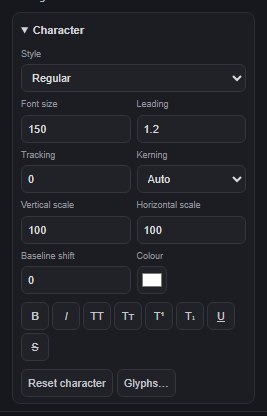
| Setting | What it does |
|---|---|
| Style | Regular, Italic, Bold or Bold Italic. |
| Font size | Size in pixels. |
| Leading | Line spacing as a multiple of the font size (1.2 by default). |
| Tracking | Even spacing between characters, in thousandths of an em. Negative values tighten. |
| Kerning | Auto, Metrics (the font's own kerning) or None (0). |
| Vertical scale / Horizontal scale | Stretch or squeeze the characters, in per cent. |
| Baseline shift | Raise (positive) or lower (negative) characters from the baseline, in pixels. |
| Colour | Character colour. |
The attribute buttons toggle Faux bold, Italic, All caps, Small caps, Superscript, Subscript, Underline and Strikethrough. Reset character removes the character-level styling from the selection so it follows the layer again. Glyphs… opens the glyph browser while you edit (see Fonts, glyphs and icons).
The font family is set with the Font control above these groups.
#Paragraph
Paragraph settings apply to the whole type layer.
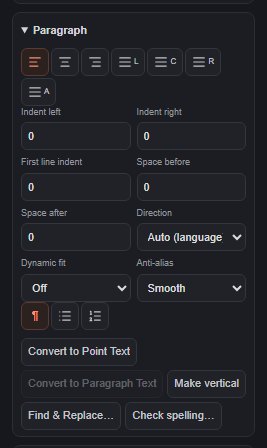
| Setting | What it does |
|---|---|
| Alignment | Align left, centre or right. |
| Justify last L / C / R / A | Justify the lines to both edges, with the last line aligned left, centre, right, or justified too (A). Most useful for paragraph type. |
| Indent left / Indent right | Inset the text from the sides, in pixels. |
| First line indent | Extra indent for the first line of each paragraph. Negative values make a hanging indent. |
| Space before / Space after | Extra space around each paragraph, in pixels. |
| Direction | Auto (language), Left to right or Right to left. Right-to-left text is aligned to the right; this is an approximation, not full bidirectional text layout. |
| Dynamic fit | For paragraph type only: Shrink to box scales the text down when it overflows, Fit box scales it up or down to fill the box. Off keeps the size you set. |
| Anti-alias | How smooth the letter edges are: None, Sharp, Crisp, Strong or Smooth. Also in the Type options bar and in the Type menu. |
| Lists | No list, Bulleted list or Numbered list. |
The buttons below convert between point and paragraph text (see Edit text on the canvas), switch to vertical type (Make vertical) and open Find & Replace… and Check spelling… (see Find, replace and check spelling).
#Layer settings in the Layers panel
When a type layer is selected, the Layers panel shows more settings for the whole layer: Editable text, Layer font (whole layer), Text orientation, Layer font size, Text alignment, Text box width, Line height, Letter spacing, Bold and Text color.
#OpenType
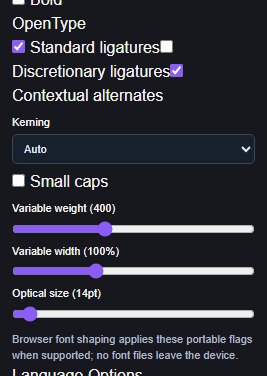
The OpenType group asks the browser to use the font's own features: Standard ligatures, Discretionary ligatures, Contextual alternates, Kerning (Auto, Normal or None) and Small caps, plus Variable weight, Variable width and Optical size sliders. Whether a feature shows depends on the font and your browser: a font without ligatures or variable axes looks the same either way. Type > OpenType takes you to these settings.
#Language Options
The Language Options group (also Type > Language Options) stores a language for the layer (Auto detect or one of 12 languages), a writing direction (Auto, LTR or RTL) and a Hyphenation intent flag. The direction affects how the text is drawn. Hyphenation is only stored with the layer: line breaks are not hyphenated.
Still stuck? See Troubleshooting or report a problem.