
Change image size and canvas size
Resize an image with Image Size…, add or remove space with Canvas Size…, remove empty borders with Trim… and show everything with Reveal All.
Image Size… scales everything in the document. Canvas Size… changes the area around your artwork without scaling it. Trim… and Reveal All fit the canvas to the artwork automatically. All four are in the Image menu, and each is one undo step.
#Image Size
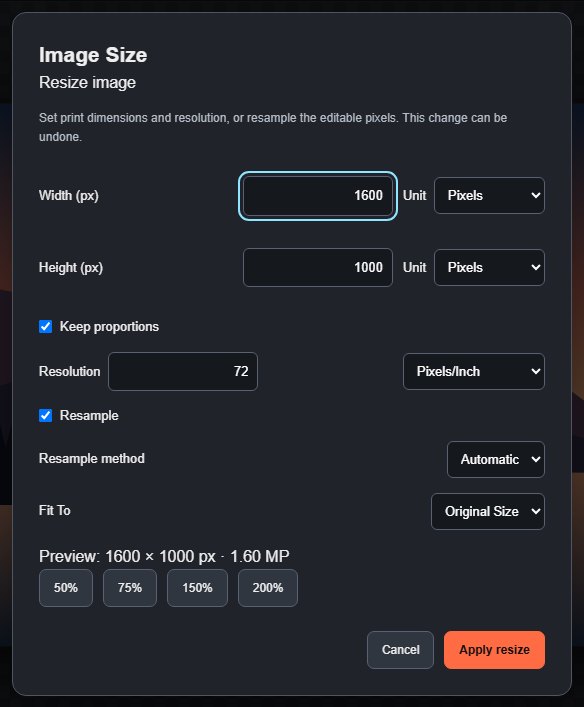
- Choose Image > Image Size… or press Alt+Ctrl+I.
- Enter Width and Height. Choose a unit for each: Pixels, Inches, Centimeters or Millimeters.
- Leave Keep proportions ticked to change both sides together.
- Optionally use Fit To (25%, 50%, 100%, 150%, 200%) or the 50%, 75%, 150% and 200% buttons. The preview line shows the new size in pixels and megapixels.
- Click Apply resize.
| Option | What it does |
|---|---|
| Resolution | Pixels/Inch or Pixels/Centimeter (1–2,400 ppi). It decides how large the image prints. |
| Resample | On: the pixel dimensions change and layers are rescaled. Off: only the print size and resolution change; the pixels stay exactly as they are. |
| Resample method | Automatic, Nearest (hard pixels, good for pixel art) or Bilinear (smooth). |
Layers stay editable after resizing. Documents are limited to 16,000 pixels on a side and 16 megapixels in total; see Large documents.
#Canvas Size
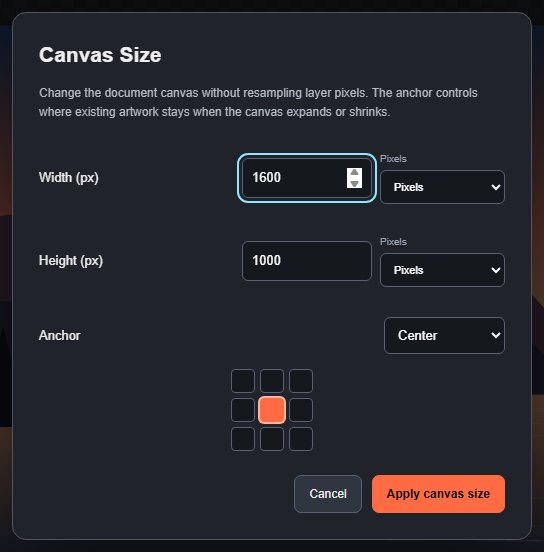
- Choose Image > Canvas Size….
- Enter the new Width (px) and Height (px).
- Choose an Anchor: where the existing artwork stays, from Top left to Bottom right. Center adds or removes space evenly on all sides.
- Click Apply canvas size.
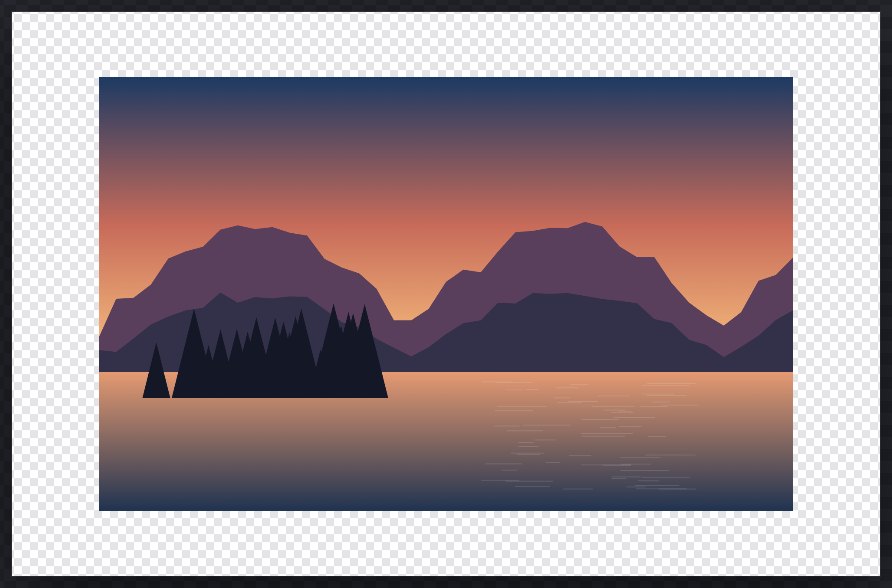
New space is transparent. To give it a colour, add a layer below and fill it (see Fill a selection). Making the canvas smaller hides artwork outside it but does not delete it from the layers.
#Trim
Image > Trim… removes empty borders around the visible artwork.
- Choose what to remove under Trim based on: Transparent pixels, or the colour of the Top-left, Top-right, Bottom-left or Bottom-right pixel.
- Under Trim away, untick any side (Top, Left, Bottom, Right) you want to keep.
- Click Apply trim.
Trim looks at the combined visible image, and layer pixels are kept.
#Reveal All
Image > Reveal All enlarges the canvas so that every layer's content, including parts moved off the edge, is visible again.
Still stuck? See Troubleshooting or report a problem.