
Fonts, glyphs and icons
Choose from about 150 built-in fonts, search and favourite them in the font browser, insert symbols and icons from the glyph browser, and fix missing fonts.
PixelForge comes with a library of open-licence fonts hosted alongside the editor, plus the four common system fonts Arial, Georgia, Courier New and Verdana. No font provider is contacted and nothing you type is sent anywhere. A font is only downloaded the first time you use or preview it, and it then keeps working offline.
#Choose a font
- Font list: the Font control in the sidebar's Text section and the font list in the Type options bar list every font, grouped by category.
- Font browser: click Aa (Browse typefaces) next to a font list to search and preview.
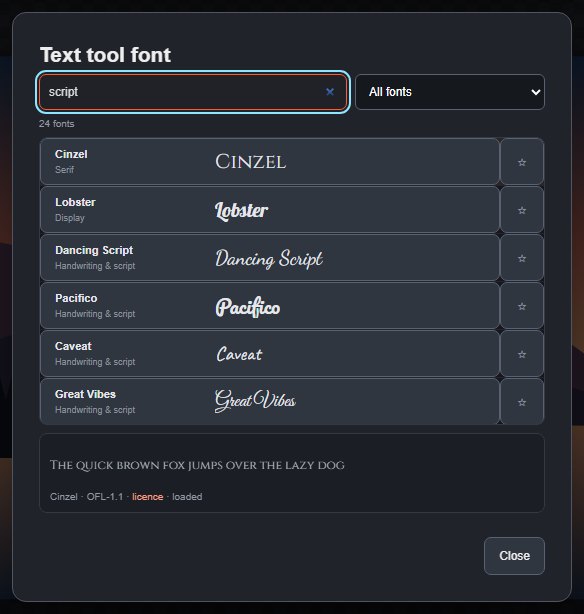
In the font browser you can:
- Search by name, category or style tag.
- Filter by category: Sans serif, Serif, Slab serif, Display, Rounded, Handwriting & script, Monospace, Condensed, Decorative, Icons and Symbols & signs, or your Favourites and Recent fonts.
- Click ☆ to mark a favourite. Favourites and recent fonts are remembered in this browser.
- Click a font to use it. The details strip at the bottom shows a preview, the font's licence and whether it has loaded.
From the keyboard: ↓ moves from the search box into the list, ↑ ↓, Page Up, Page Down, Home and End move through it, Enter chooses, F toggles a favourite and Esc closes.
The font you choose applies to new type, to the selected type layer, or to the selected characters while you edit. In the Layers panel, Layer font (whole layer) changes the whole layer without changing the font for new type.
Type > Font Preview Size (or Preview in the Text section) switches the size of the font names in the font list between Small, Medium and Large.
#Insert glyphs, icons and symbols
Type > Glyphs, Icons & Symbols… (also Glyphs, icons & symbols… in the Text section) opens the glyph browser.
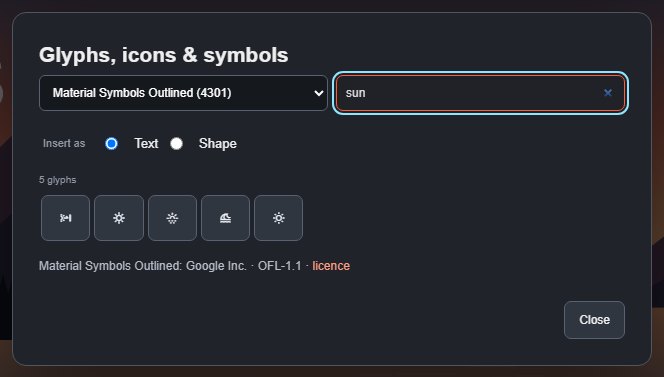
- Choose a font in the font list at the top. Icon fonts include Material Symbols (Outlined and Rounded), Font Awesome Free (Solid, Regular and Brands) and Weather Icons; symbol fonts include Noto Sans Symbols, Noto Sans Math, Noto Music and Noto Emoji (monochrome).
- Search. Icon fonts are searched by icon name and tags (for example heart or rain). Text and symbol fonts are browsed by Unicode block, and you can search by block name, by code point (U+2605) or by pasting the character.
- Under Insert as, choose Text or Shape.
- Click a glyph.
With Text, the glyph goes in at the text caret if you are editing type in the same font, is added to the selected type layer if it uses that font, or otherwise becomes a new type layer set in the glyph's font. A type layer has one font family, so an icon is never drawn in the wrong font.
With Shape, the glyph becomes an editable path layer, traced from its pixels (see Paths and work paths). The outline is an approximation of the glyph, not the font's exact curves.
The licence of the font you are browsing is linked at the bottom of the dialog. Font Awesome icon designs are CC BY 4.0, and the dialog shows the required attribution.
#Missing fonts
A project can use a font this browser does not have, for example one of the system fonts on another operating system, or a font from a newer project. The text stays editable and is drawn with the browser's fallback font. The editor shows a notice, the font list marks the font as (missing), and the text keeps the original font name so it looks right again wherever the font is available.
Type > Manage Missing Fonts lists the system fonts and every font the document uses, with their state: Available, library fonts that are loaded or load on demand, or Fallback active.
Type > Update All Text Layers sets one font and size on every type layer in the document at once (see Type presets and default styles), which is a quick way to replace a missing font.
Still stuck? See Troubleshooting or report a problem.