
Use screen modes for more canvas space
Switch between Standard Screen Mode, Full Screen with Menu and Full Screen with F or the View menu, and leave them with Esc.
Screen modes give the canvas more of your screen by hiding parts of the editor. They change only the workspace, never your document.
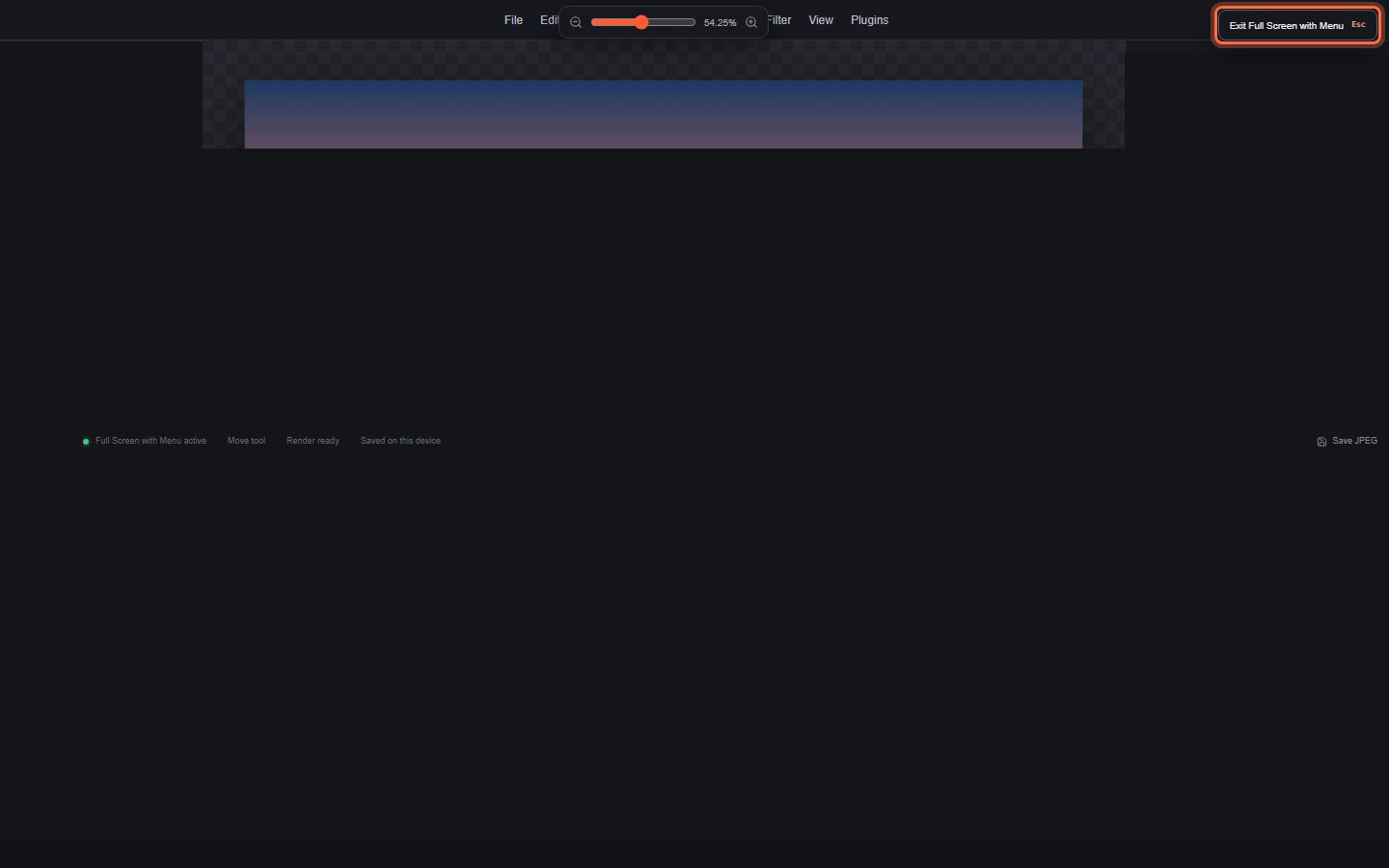
| Mode | What you see |
|---|---|
| Standard Screen Mode | The complete editor. |
| Full Screen with Menu | The canvas uses the available space, keeping the menu bar and the toolbar. |
| Full Screen | Only the canvas, the toolbar and the zoom control. The menus, document bar, properties sidebar and status bar are hidden. |
#Change screen mode
- Press F to cycle: Standard → Full Screen with Menu → Full Screen → Standard.
- Or choose View > Standard Screen Mode, View > Full Screen with Menu or View > Full Screen.
When your browser allows it, the two full-screen modes also switch the browser itself to full screen. If the browser does not allow that, the editor still hides its own panels.
#Leave a full-screen mode
- Press Esc, or
- Click the Exit button in the top-right corner (for example Exit Full Screen). It stays visible and can be reached with the keyboard.
Leaving the browser's own full screen also takes you back.
The editor remembers your screen mode in this browser and restores it the next time you open the editor. Keyboard shortcuts keep working in every mode.
Still stuck? See Troubleshooting or report a problem.