
Move, align and distribute layers
Drag layers with the Move tool, pick layers by clicking the canvas, and line layers up with the canvas or space them evenly.
The Move tool (V) moves the active layer, together with any other selected or linked layers. Its options also align layers to the canvas and space layers evenly.
#Move a layer
- Select the layer in the Layers panel.
- Choose Move.
- Drag on the canvas. The whole layer moves with the pointer.
Moving is non-destructive: the layer's pixels are kept, so content dragged off the canvas can be dragged back.
The Background layer is locked in place. To move it, choose Layer > Layer from Background first.
#Move several layers at once
- Selected layers: select the layers in the Layers panel (Shift-click or Ctrl-click, see Find and select layers), then drag one of them. All selected layers move by the same amount.
- Linked layers: dragging a linked layer also moves every layer linked to it. See Link and lock layers.
The move is one undo step, and the status bar says how many layers moved. If one of the layers is locked or is the Background layer, nothing moves and the status bar asks you to unlock them first. After Select > Deselect Layers, a drag moves only the active layer.
#Pick layers on the canvas
- Tick Auto-select layer to move whichever layer has visible pixels under the pointer, instead of the active layer.
- Right-click (or, on a touch screen, touch and hold for half a second) the canvas to select the top layer at that point without moving it.
- Double-click text with the Move tool to start editing it with the Type tool.
#Align to canvas
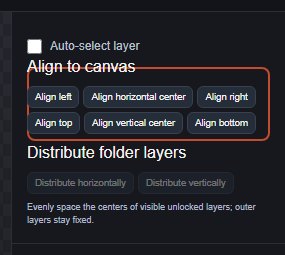
The Align to canvas buttons move the selected layers so that an edge or centre lines up with the canvas: Align left, Align horizontal center, Align right, Align top, Align vertical center and Align bottom. The same commands are in the Layer menu (Align Left, Align Horizontal Centers and so on).
When several layers are selected, they are aligned as a group: their combined bounds line up with the canvas and their positions relative to each other stay the same. Alignment uses the visible pixels of each layer, not its full rectangle. Locked layers cannot be aligned.
#Distribute layers
Distribute horizontally and Distribute vertically (also Layer > Distribute Horizontal Centers and Distribute Vertical Centers) space the centres of layers evenly. They work on at least three visible, unlocked layers in the same folder, or on three or more selected layers in one folder. The two outermost layers stay where they are and the ones between are moved.
Still stuck? See Troubleshooting or report a problem.