
Erase with the Eraser, Background Eraser and Magic Eraser
Remove pixels with the Eraser, erase a similar colour with the Background Eraser, or clear a whole colour area in one click with the Magic Eraser.
The Eraser family has three tools. All three change the pixels of the active layer; each stroke or click is one undo step. Press E to choose the Eraser, and press it again to cycle through the Background Eraser and Magic Eraser, or pick them from the Eraser button's flyout.
#Eraser
The Eraser works like the Brush, but removes pixels to transparency.
- Choose the Eraser (E).
- Set Size, Hardness and Opacity. At 50% opacity a stroke removes half of the pixels' coverage.
- Drag over the area to erase.
The Eraser shares most Brush options: Spacing, Smoothing, scatter and jitter, texture and the other tip effects, the secondary tip, pressure and Paint symmetry. It has no blend mode and ignores colour dynamics.
#Erasing on a Background layer
A new document with a filled background starts with a Background layer. On that layer the Eraser paints the background colour (the Background well) instead of making pixels transparent, as in other image editors. To erase to transparency, choose Layer > Layer from Background first, or erase on another layer.
#Background Eraser
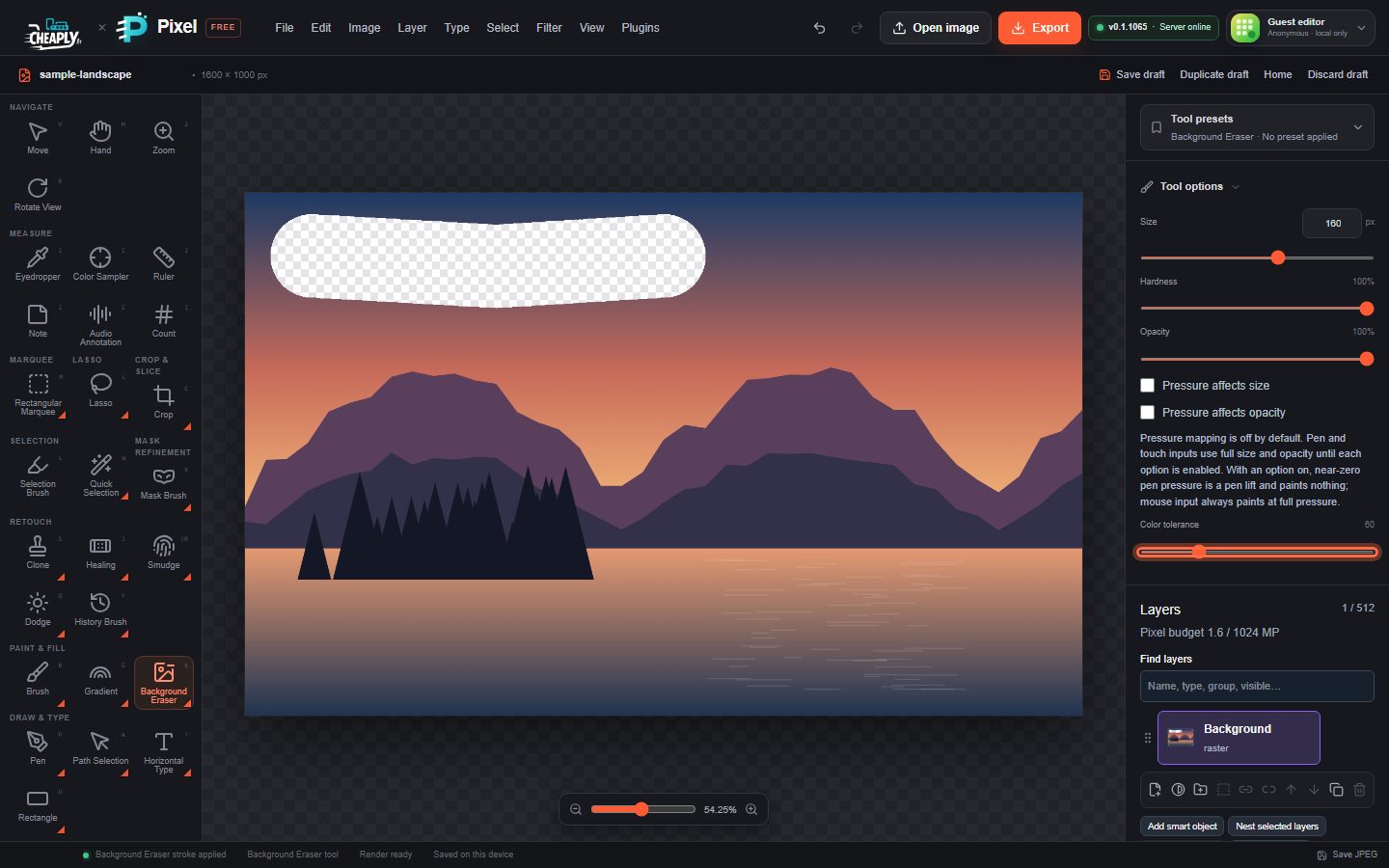
The Background Eraser samples the colour under the point where you start the stroke and erases only pixels close to that colour that are under the brush. Use it to clear a plain backdrop around an object without erasing the object itself.
- Choose the Background Eraser.
- Set Size, Hardness, Opacity and Color tolerance (0–255). Low tolerance erases only colours very close to the sample; higher values erase a wider range. At Hardness 100 the brush erases matching pixels fully up to its edge; lower values fade the erasing towards the edge, and at 0 it fades to nothing there.
- Start the stroke on the colour you want to remove and drag along the edge of the object. Pixels that do not match the sampled colour are kept, even inside the brush.
The colour is sampled once, at the start of each stroke. To remove a different colour, start a new stroke on it.
#Magic Eraser
The Magic Eraser removes, in one click, the connected area of similar colour around the point you click.
- Choose the Magic Eraser.
- Set Color tolerance.
- Click the colour area to remove.
It removes only pixels connected to the clicked point. If nothing matches, the editor shows "No contiguous pixels matched at that point". Color tolerance is shared with the Fill tool, Magic Wand, Quick Selection, Color Replace and Background Eraser.
#Erasing inside a selection
With an active selection, all three tools change only pixels inside it. A Magic Eraser click outside the selection does nothing and shows "Click inside the selection to erase".
#Other ways to remove a background
- Edit > Remove Background… removes edge-connected backdrop colours in one step and keeps the result editable as a mask. See Remove a background.
- Select the subject and add a layer mask. See Select subjects and objects.
Still stuck? See Troubleshooting or report a problem.