
Edit text on the canvas
Reopen a type layer, select and retype characters, resize paragraph boxes, convert between point and paragraph text and use the type editing shortcuts.
Type layers stay editable. You edit them directly on the canvas, with a text caret, selection highlight and handles, much like in a word processor.
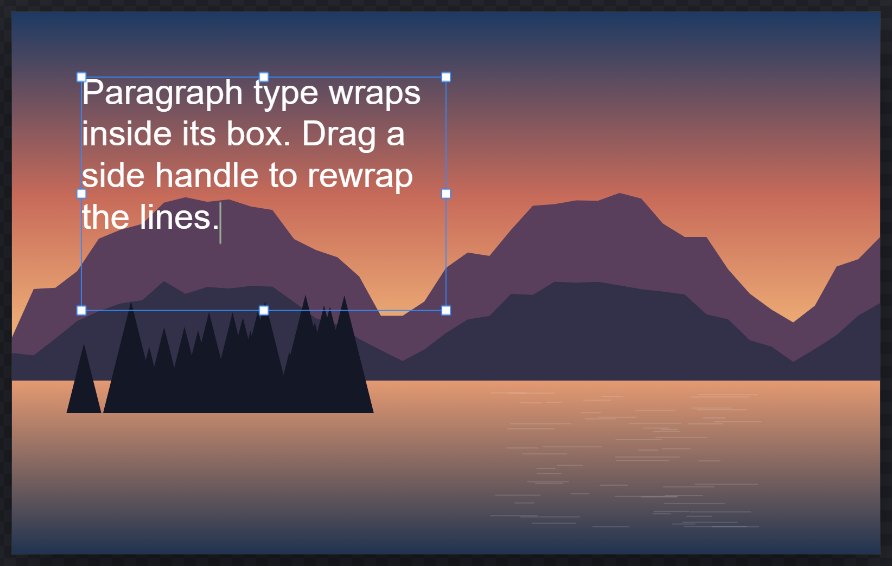
#Start editing
- With Horizontal Type or Vertical Type active, click existing type.
- With the Move tool, double-click the type.
The text is selected as an editing session. The Type options bar above the canvas shows ✓ (Commit type) and ✕ (Cancel type editing).
#Select and type
| To | Do this |
|---|---|
| Place the caret | Click in the text. |
| Select characters | Drag across them, or hold Shift and click to extend the selection. |
| Select a word / paragraph | Double-click / triple-click. |
| Select all the text | Ctrl+A |
| Move by line, to line start or end | ↑ ↓, Home, End (these follow the wrapped lines you see) |
| Copy, cut, paste | Ctrl+C, Ctrl+X, Ctrl+V (plain text) |
| Insert a tab | Tab |
| Undo / redo typing | Ctrl+Z / Ctrl+Shift+Z or Ctrl+Y |
Typing uses your browser's own text input, so accented characters, input methods for other scripts, the browser's spell-check underline and the phone keyboard all work as usual.
#Styling shortcuts while editing
These apply to the selected characters (or to the paragraph, for alignment). On a Mac use ⌘ for Ctrl and Option for Alt.
| Shortcut | Effect |
|---|---|
| Ctrl+B / I / U | Faux bold / italic / underline |
| Ctrl+Shift+> or < | Font size up or down by 2 px (add Alt for 10 px) |
| Alt+← / → | Tracking −20 / +20 (add Ctrl for ±100) |
| Alt+↑ / ↓ | Leading −0.1 / +0.1 |
| Shift+Alt+↑ / ↓ | Baseline shift up / down by 2 px |
| Ctrl+Shift+L / C / R | Align left / centre / right |
| Ctrl+Shift+J | Justify (last line left) |
#Finish editing
- Commit: click ✓, press Ctrl+Enter (or Enter on the numeric keypad), click outside the type, choose another tool or open a menu. The whole session becomes one history step.
- Cancel: click ✕ or press Esc. The layer goes back to how it was before you started.
#Resize and move the text box
- Drag a handle of a paragraph box to change its size. The text rewraps; the letters keep their size.
- Hold Ctrl while dragging a handle to scale the type instead.
- The handles of point type scale the type.
- Hold Ctrl and drag inside the box to move it.
When paragraph text does not fit its box, the bottom-right handle shows a red +. Make the box bigger, or turn on Dynamic fit in the Paragraph settings to scale the text to the box (see Character and paragraph settings).
To rotate type or enter exact positions, use the layer transform commands; see Free transform.
#Point text and paragraph text
- Type > Convert to Paragraph Text puts point type in a box so it wraps.
- Type > Convert to Point Text removes the box; each line then ends only where you pressed Enter.
The same buttons are at the bottom of the Paragraph group in the sidebar.
#Edit the text without the canvas
When a type layer is selected, the Layers panel shows an Editable text field. Changing it replaces the text and keeps each character's styling where it can.
Still stuck? See Troubleshooting or report a problem.