
Grow, shrink, border, smooth, feather and transform a selection
Refine an existing selection with Select > Grow…, Contract…, Border…, Smooth…, Feather… and Transform Selection, without changing any pixels.
The commands in the lower part of the Select menu change the shape or edge of the current selection. They never change image pixels, and each one is a single undo step. They need an active selection; without one they tell you to create a selection first.
#Grow, Contract, Border and Smooth
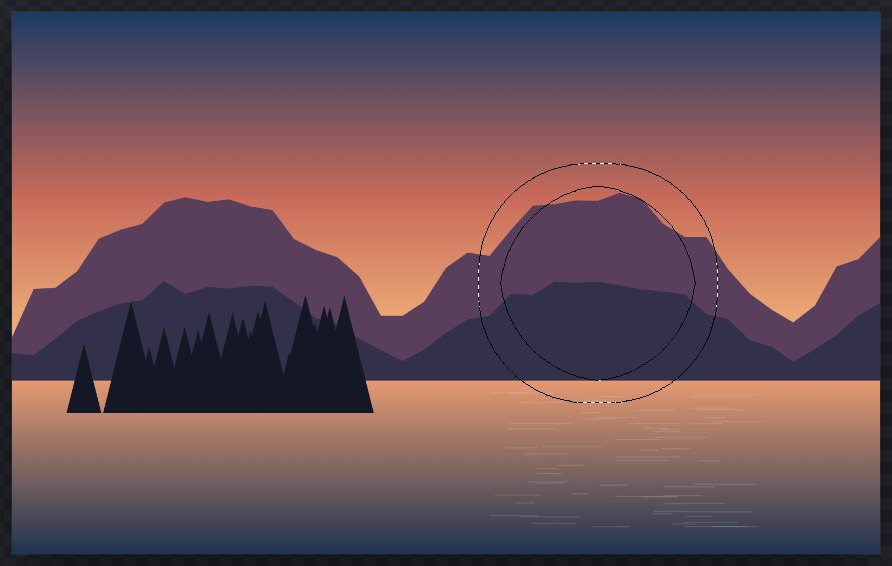
- Make a selection.
- Choose one of the commands below.
- Enter Radius (px), a whole number from 1 to 1,000.
- Click Apply selection refinement.
| Command | What it does |
|---|---|
| Select > Grow… | Expands the selection outwards by the radius. |
| Select > Contract… | Shrinks the selection inwards by the radius. |
| Select > Border… | Replaces the selection with a band along its edge, extending the radius both inside and outside. |
| Select > Smooth… | Softens jagged or noisy edges by averaging the selection over the radius. |
Grow, Contract and Border use a square neighbourhood, so on rounded selections a large radius can give slightly squared corners. Partly selected pixels keep their partial strength.
#Feather
Feathering softens the edge so that edits fade out gradually.
- Choose Select > Feather….
- Enter Feather (px), from 0 to 1,000. Decimals such as 1.5 are allowed (a comma also works).
- Click Apply feather.
You can also drag Current selection feather (0–100 px) in Selection options. A feather affects how the selection is used (fills, painting, masks, clearing); the marching ants stay on the 50% line of the soft edge.
#Transform Selection
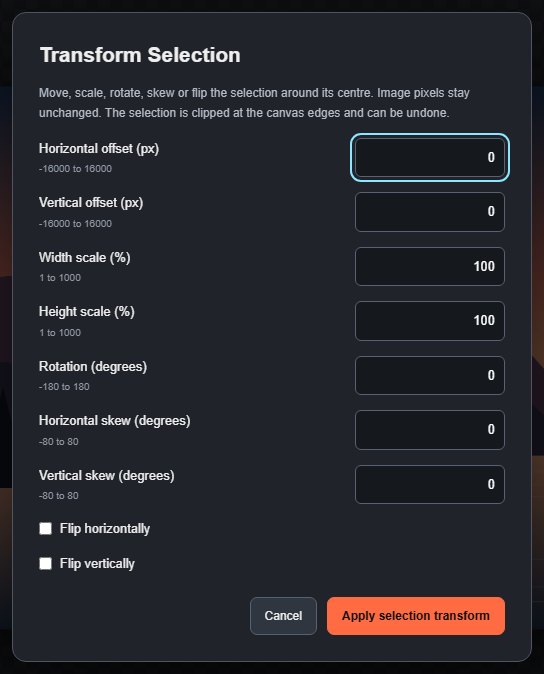
Select > Transform Selection moves or reshapes the selection outline itself, around its centre. Enter any of:
| Field | Range |
|---|---|
| Horizontal offset (px), Vertical offset (px) | −16,000 to 16,000 |
| Width scale (%), Height scale (%) | 1 to 1,000 |
| Rotation (degrees) | −180 to 180 |
| Horizontal skew (degrees), Vertical skew (degrees) | −80 to 80 |
| Flip horizontally, Flip vertically | On or off |
Click Apply selection transform. Parts that move off the canvas are clipped at its edge. To transform the pixels of a layer instead, use Free Transform.
Still stuck? See Troubleshooting or report a problem.