
Batch processing
Convert many images at once into one ZIP, apply a recorded action to a set of files, or export every step of your history.
PixelForge has two batch commands in the File menu. Both process everything in your browser and download one ZIP file.
#Convert many images
File > Batch export images… converts a set of image files to one format.
- Choose File > Batch export images… and select the files (you can select several at once).
- In the Batch export images dialog, choose a Format: PNG, JPEG, WebP, PSD or PDF. For JPEG and WebP, set the Quality.
- Click Build batch ZIP. Progress shows how many images are done. Cancel batch export stops it.
- Click Download batch ZIP.
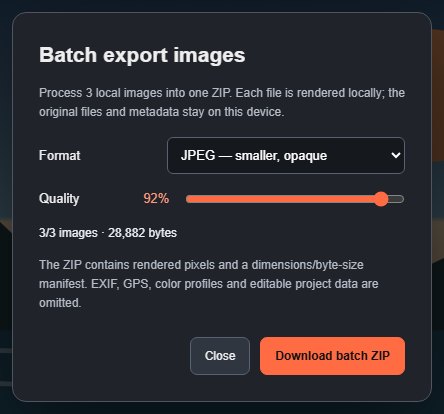
The images are converted one by one. If some files cannot be read, they are listed with the reason, and the ZIP contains the ones that worked. Your open document is not changed.
#Limits
- Up to 64 files per batch, each up to 64 MB and 16 megapixels.
- The finished images together can be at most 256 MB.
- Files that PixelForge cannot open (see Supported file formats) are skipped.
The ZIP contains the converted images and a small manifest listing their dimensions and sizes. EXIF, GPS, colour profiles and the original files are not included.
#Apply an action to many images
You can record a sequence of edits as an action and run it on a set of files:
- Open Edit > Action recipes… and record an action (see Actions).
- In the action's row in Action recipes, click Batch… and select the files.
- Fill in any action parameters, choose the format, then click Apply Action and build ZIP and download the result.
Commands that cannot run outside the open document fail for that file and are listed, rather than being skipped silently.
#Export every history step
File > Batch export history… renders every step in your undo history as a separate image and puts them in one ZIP, for example to show how an edit progressed.
- Choose File > Batch export history….
- Choose a Format and Color profile.
- Click Build batch ZIP, then download it.
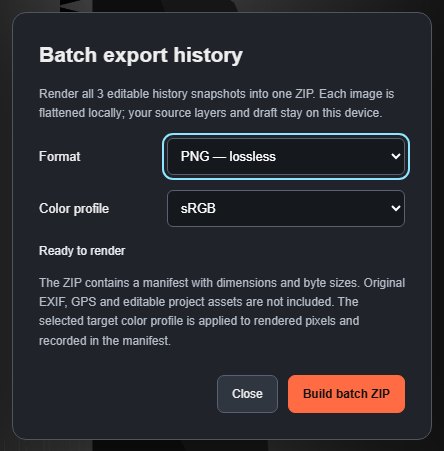
Only the history steps currently in memory are exported (see Undo, redo and history basics). The output is limited to 256 MB.
Still stuck? See Troubleshooting or report a problem.