
Brush presets
Use the built-in brush tips and the space-art preset library, and save, rename and delete your own brush presets on this device.
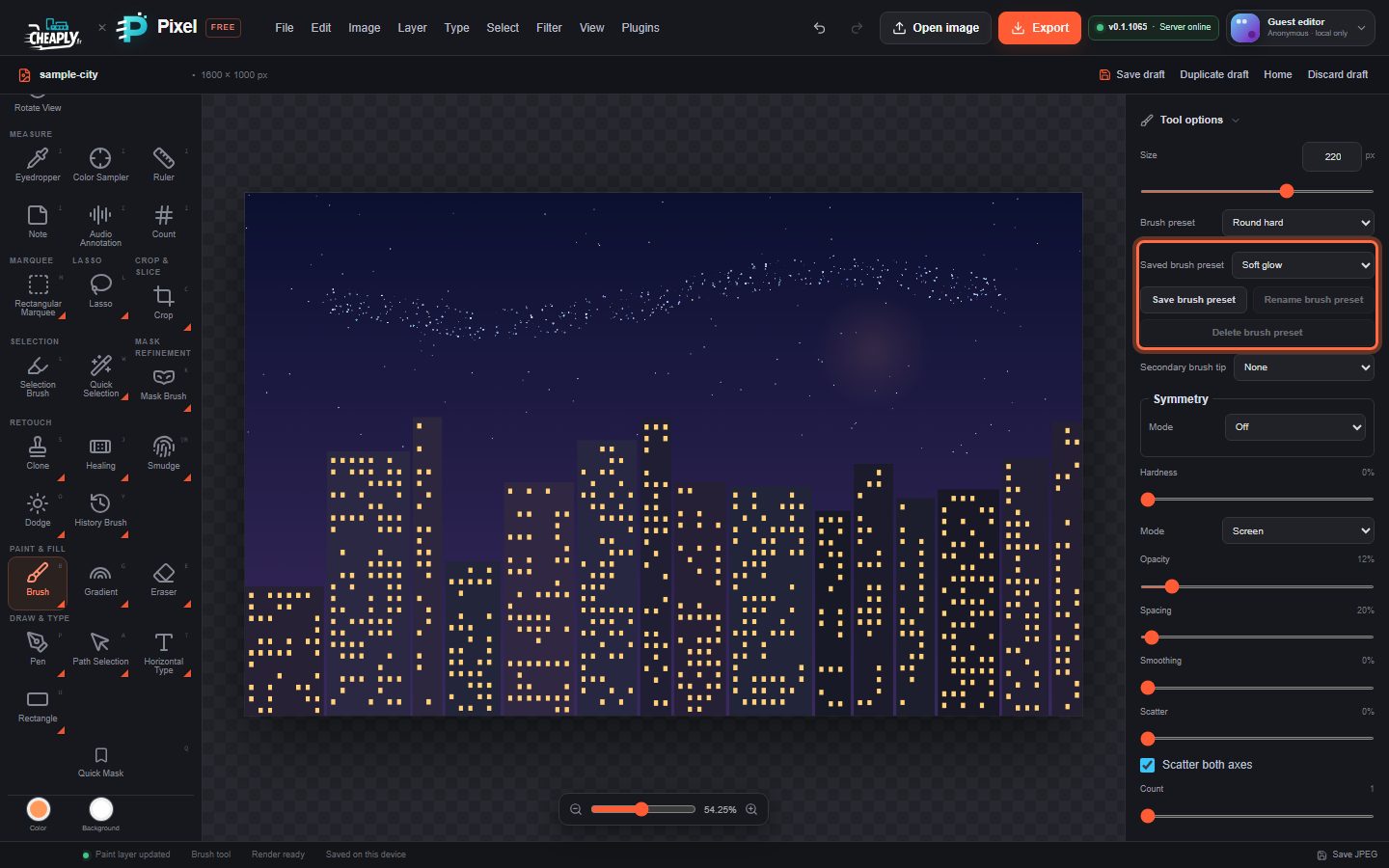
Brush presets store a combination of brush settings so you can switch between brushes in one click. PixelForge has two kinds: the four basic tips in Brush preset, and the Saved brush preset library, which holds ready-made space-art brushes and the presets you save yourself.
#Basic tips
The Brush preset menu in the Brush and Pencil options has four tips: Round hard, Round soft, Pencil and Ink angled. Choosing one sets the size, hardness, spacing, angle, roundness, tip flips and pressure options. It changes future strokes only.
#Built-in library presets
Open Saved brush preset and choose a preset under Space art:
| Preset | What it paints |
|---|---|
| Star field | Small hard dots, widely spaced and scattered, with size, opacity and colour jitter. |
| Soft glow | A large, very soft, faint dab in Screen mode, for glows and light. |
| Dust / nebula | Scattered soft dabs with opacity, size, slight hue and foreground/background jitter. |
| Smoke wisp | A soft, faint brush with size and opacity jitter and smoothing. |
| Silk smoke | Turns on Silk strands: a ribbon of fine twisting strands in Screen mode. |
The library presets use your current foreground colour. They look best on a dark background.
#Save your own preset
- Set up the Brush (or Pencil or Smudge) the way you want it.
- Click Save brush preset, or choose Edit > Define Brush Preset….
- Type a name in the dialog and click Save (or press Enter). The name cannot be empty. The new preset is selected and listed under Saved on this device.
A preset stores the brush size, tip, opacity, flow, smoothing, scatter, count and jitter, colour dynamics, texture, dual tip, bristle, wet edges, build-up, pressure options, blend Mode and Silk strands settings. A preset saved while the Smudge tool is active also stores the Smudge options (Strength, Mode, Finger painting and the sampling options). Presets never contain pixels.
#Rename or delete a preset
Choose one of your presets in Saved brush preset, then click Rename brush preset or Delete brush preset. Deleting asks for confirmation. Built-in presets cannot be renamed or deleted, so both buttons stay disabled while one is selected.
#Where presets are kept
- Your presets are saved in this browser on this device, so they are available in every document you open here. They are not synced to other browsers or devices.
- They are also saved in your draft and in project files. Opening a project from another device adds its presets to your library.
- The library keeps up to 32 of your presets.
- If the browser's storage is unavailable or full, the built-in presets still work.
#Brush presets and tool presets
Brush presets cover brush settings for the Brush, Pencil and Smudge. Tool presets, at the top of the tool options, save every option of any tool, including the tool itself. See Tool presets.
Still stuck? See Troubleshooting or report a problem.