
Save, load and reuse selections
Keep selections in your document with Save Selection… and the Saved selections panel, download them as files, and turn a selection into a layer mask.
A selection you have worked hard on can be stored and brought back later, either inside the document or as a separate file.
#Save a selection in the document
- Make a selection.
- Choose Select > Save Selection….
- Type a Name and click Save selection.
The selection is stored in the document. It is kept in your local draft and in .pixelforge project files, so it is still there when you come back.
#The Saved selections panel
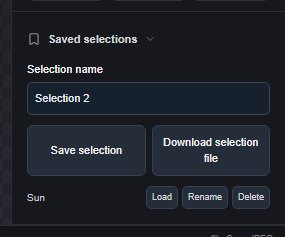
Open Saved selections from the More panels strip in the properties sidebar.
- Save selection saves the current selection under the name in Selection name.
- Load makes a saved selection the current selection.
- Rename and Delete manage the list. Delete asks for confirmation.
- Download selection file downloads the current selection as a file (see below).
Saving, loading, renaming and deleting are all undoable.
#Selection files
Select > Download Selection File… saves the current selection as a small .pixelselection file, named after the text in Selection name. Select > Load Selection File… opens such a file, makes it the current selection and adds it to Saved selections.
#Turn a selection into a layer mask
Select > Mask from Selection (also Layer > Layer Mask) adds a layer mask to the active image, smart object or adjustment layer that shows the selected area and hides the rest. The selection is used up by the mask (choose Select > Reselect to get it back). The pixels themselves are not changed, so you can repair the mask later with the Mask Brush and Mask Eraser. See Layer masks.
Still stuck? See Troubleshooting or report a problem.