
Keyboard shortcuts
Every keyboard shortcut in the editor, grouped by tools, files, editing, selections, layers, view and type, plus how to assign your own keys to tools and menu commands.
PixelForge uses many of the same keys as other image editors. On a Mac, use ⌘ wherever this page says Ctrl, and Option for Alt.
Shortcuts do nothing while you are typing in a text field or a dialog is open, and some browser shortcuts cannot be taken over by a web page.
#Tools
Every tool's key is the letter shown on its toolbar button, in its tooltip and in its flyout. Pressing a family's letter selects the first tool of that family; pressing it again moves to the next tool in the family. Hold Shift to go backwards. Keys pressed with Ctrl, Alt or ⌘ never select tools.
| Key | Tool |
|---|---|
| V | Move |
| H | Hand |
| Z | Zoom |
| R | Rotate View |
| Shift+R | Smudge, Blur and Sharpen. From another tool it selects the one you used last (Smudge the first time); while one of them is active it cycles Smudge, Blur, Sharpen. The toolbar shows this key as ⇧R. |
| Key | Tools (in cycling order) |
|---|---|
| I | Eyedropper, Color Sampler, Ruler, Note, Audio Annotation, Count |
| M | Rectangular Marquee, Elliptical Marquee, Single Row Marquee, Single Column Marquee |
| L | Lasso, Polygonal Lasso, Magnetic Lasso, Selection Brush |
| W | Selection Brush, Quick Selection, Magic Wand |
| C | Crop, Perspective Crop, Slice, Slice Select |
| K | Frame, Mask Brush, Mask Eraser, Adjustment Brush |
| S | Clone, Pattern Stamp |
| J | Healing, Spot Healing, Patch, Red Eye |
| Y | History Brush, Art History Brush |
| O | Dodge, Burn, Sponge |
| B | Brush, Pencil, Color Replace, Mixer Brush |
| G | Gradient, Fill |
| E | Eraser, Background Eraser, Magic Eraser |
| P | Pen, Freeform Pen, Curvature Pen |
| A | Path Selection, Direct Selection |
| T | Horizontal Type, Vertical Type, Horizontal Type Mask, Vertical Type Mask |
| U | Rectangle, Rounded Rectangle, Ellipse, Line, Polygon, Custom Shape |
The Selection Brush belongs to both the L and the W families. Add Anchor Point, Delete Anchor Point and Convert Point have no key; choose them from the Pen flyout.
#Colours, painting and Quick Mask
| Key | Action |
|---|---|
| D | Reset the colours to black foreground and white background |
| X | Swap the foreground and background colours |
| [ / ] | Make the brush smaller / larger, for every painting tool |
| Q | Turn Quick Mask mode on or off |
| Alt+Backspace | Fill the selection (or the whole layer) with the foreground colour |
| Ctrl+Backspace | Fill the selection (or the whole layer) with the background colour |
| Shift+F5 | Edit > Fill… |
| Delete or Backspace | Clear the selected pixels of the active layer (with a selection) |
#Files
| Shortcut | Action |
|---|---|
| Ctrl+N | New white document |
| Ctrl+O | Open image… |
| Ctrl+S | Open the Export dialog |
| Ctrl+Shift+S | Download the project file (.pixelforge) |
#Editing
| Shortcut | Action |
|---|---|
| Ctrl+Z | Undo |
| Ctrl+Y or Ctrl+Shift+Z | Redo |
| Ctrl+Alt+Z | Edit > Toggle Last State: switch to the previous state; press again to switch back (see Undo, redo and history basics) |
| Ctrl+Shift+F | Edit > Fade… (see Fade an edit) |
| Ctrl+C | Copy Layer |
| Ctrl+Shift+C | Copy Merged |
| Ctrl+X | Cut Layer |
| Ctrl+V | Paste Layer, or paste an image from the clipboard when no layer was copied |
| Ctrl+T | Free Transform |
| Ctrl+F | Search commands (see Search commands) |
| Ctrl+Shift+L | Auto Tone |
| Ctrl+Alt+I | Image Size… |
Ctrl+F, Ctrl+Shift+F and Ctrl+Alt+Shift+F are three different commands: the modifiers must match exactly. When a command is greyed out in its menu, its shortcut does nothing either, and the status bar says the command is not available.
#Selections
| Shortcut | Action |
|---|---|
| Ctrl+A | Select all |
| Ctrl+D or Ctrl+Shift+A | Deselect |
| Ctrl+Shift+I or Ctrl+I | Inverse |
| Ctrl+Alt+Shift+F | Select > Find Layers (focuses the Find layers field, see Find and select layers) |
| Esc | Cancel a Polygonal or Magnetic Lasso, a Pen path, a Quick Mask stroke or a crop in progress |
| Enter | Apply a crop, perspective crop or frame preview |
#Layers
| Shortcut | Action |
|---|---|
| Ctrl+J | Duplicate the layer |
| Ctrl+G | Group the layer |
| Ctrl+Shift+G | Ungroup |
| Ctrl+] / Ctrl+[ | Bring Forward / Send Backward |
| Ctrl+Shift+] / Ctrl+Shift+[ | Bring to Front / Send to Back |
| Ctrl+, | Layer > Hide Layers: hide or show the active layer |
| Alt+↑ / Alt+↓ (on a focused row of the Layers panel) | Bring Forward / Send Backward that layer; add Shift for front / back |
| Delete or Backspace (on a focused row of the Layers panel) | Delete that layer (or the selected layers it belongs to) |
#View and workspace
| Shortcut | Action |
|---|---|
| 0 or Ctrl+0 | Fit to screen |
| 1 or Ctrl+1 | Actual size (100 %) |
| + / - (also with Ctrl) | Zoom in / out |
| F | Cycle Standard Screen Mode, Full Screen with Menu and Full Screen |
| Esc | Leave full screen, or close an open menu or tool flyout |
| F6 or Ctrl+. | Move keyboard focus into the active tool's options |
| F1 | Help > Help Center: open the Help Center in a new tab |
#Menus from the keyboard
Menu names in the menu bar are buttons: Tab to one and press Enter, Space or ↓ to open it. Inside a menu, ↑ and ↓ move between the available commands, Home and End jump to the first and last, Enter runs the command and Esc closes the menu.
#While editing type
See Edit text on the canvas for the type shortcuts: commit with Ctrl+Enter, cancel with Esc, and character and paragraph formatting keys.
#See and customise shortcuts
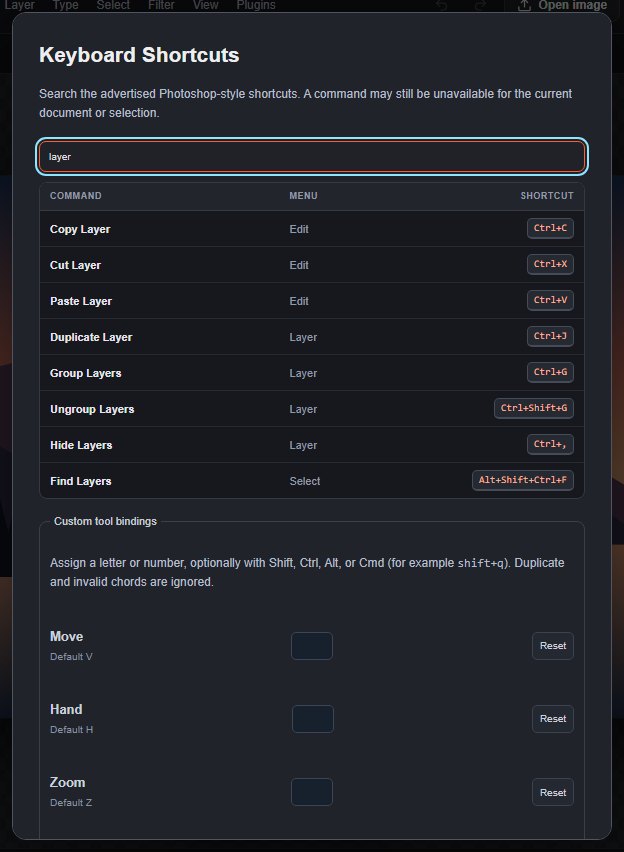
Edit > Keyboard Shortcuts… lists the shortcuts shown in the menus as a table with Command, Menu and Shortcut columns, including Search commands (Ctrl+F). Type in Filter shortcuts… to narrow the list. Help > Keyboard Shortcuts Guide opens this page.
The same dialog lets you add your own keys:
- Custom tool bindings: give any tool a key, a letter or a digit, optionally with Shift, Ctrl, Alt or Cmd. Type it like
shift+q. - Custom menu command bindings: give any menu command a key, a punctuation key or a function key, with optional modifiers, including commands that have no shortcut of their own.
Click Apply to save. Reset next to a row removes your key and restores the default; Reset all clears every custom key. Duplicate and invalid keys are ignored. Your keys are stored in this browser only.
A custom key takes priority over the built-in one, except Ctrl+F, which always opens Search commands. A command assigned to a key still runs only when it is available for the current document.
Still stuck? See Troubleshooting or report a problem.