
Hue/Saturation and Color Balance
Shift colours, make them more or less intense, and warm or cool the shadows, midtones and highlights of a layer.
Hue and Saturation change which colours a layer shows and how intense they are. Color Balance pushes the colours of the shadows, midtones and highlights separately, for example to remove a colour cast or give a photo a warm or cool look. All of them stay editable and keep the layer's original pixels.
#Change hue and saturation
- Select the layer in the Layers panel, or an adjustment layer.
- Choose Image > Hue/Saturation…. The Adjust selected layer panel opens.
- Drag Saturation right for richer colour or left for muted colour.
- Drag Hue to rotate every colour around the colour wheel.
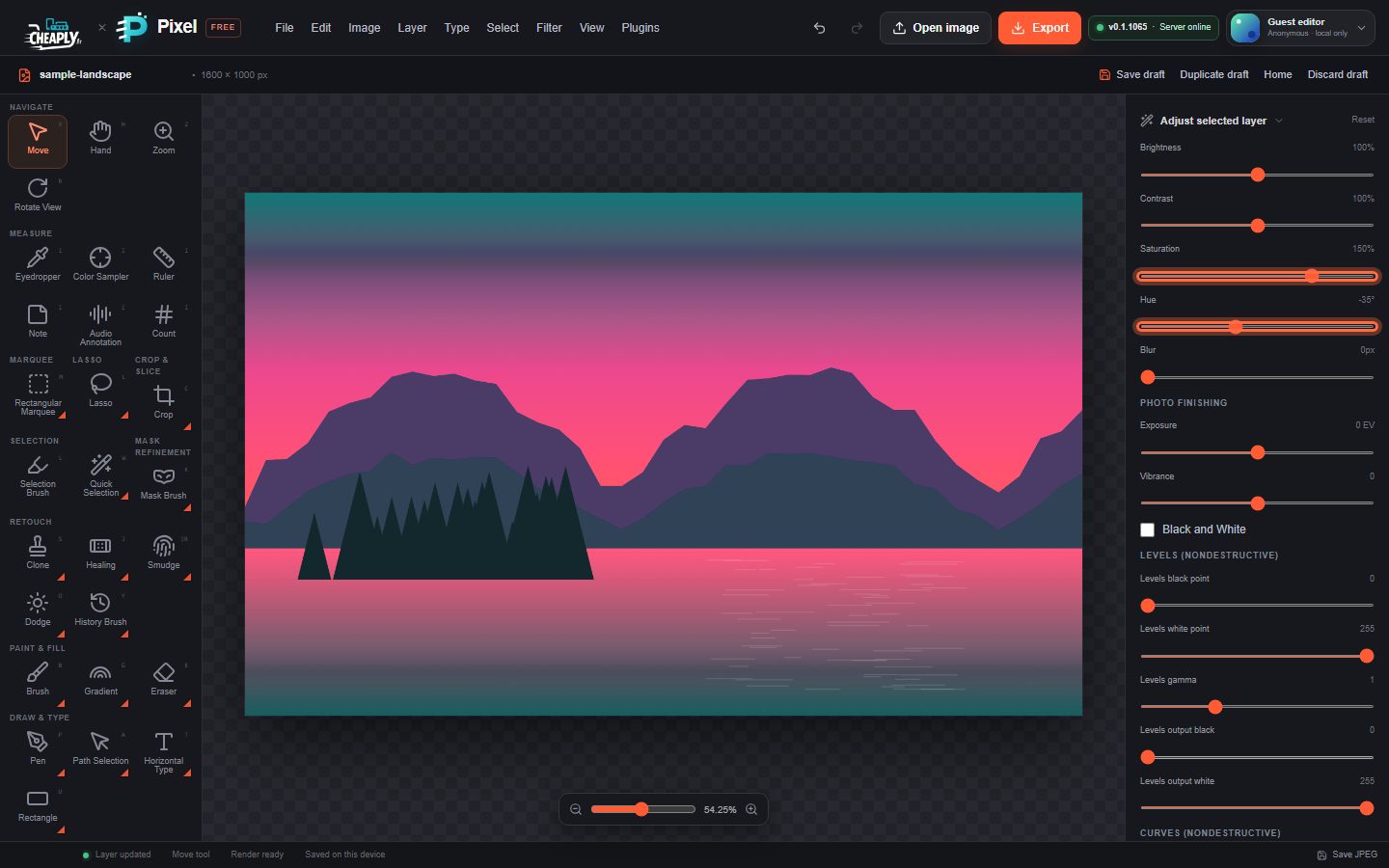
| Control | Range | What it does |
|---|---|---|
| Saturation | 0–200% | 100% is unchanged. 0% removes all colour; above 100% intensifies it. |
| Hue | −180° to 180° | Rotates all colours by the same angle. 0° is unchanged. |
| Brightness | 20–180% | Lightens or darkens the whole layer. 100% is unchanged. |
| Contrast | 20–180% | Increases or reduces the difference between light and dark. 100% is unchanged. |
#Balance colours
- Select the layer and choose Image > Color Balance…. The panel scrolls to Color Balance.
- Pick the tonal range you want to change: shadows, midtones or highlights. Each has three sliders.
- Drag a slider toward the colour you want more of. For example, move Highlights yellow/blue to the left to warm the highlights, or Shadows yellow/blue to the right to cool the shadows.
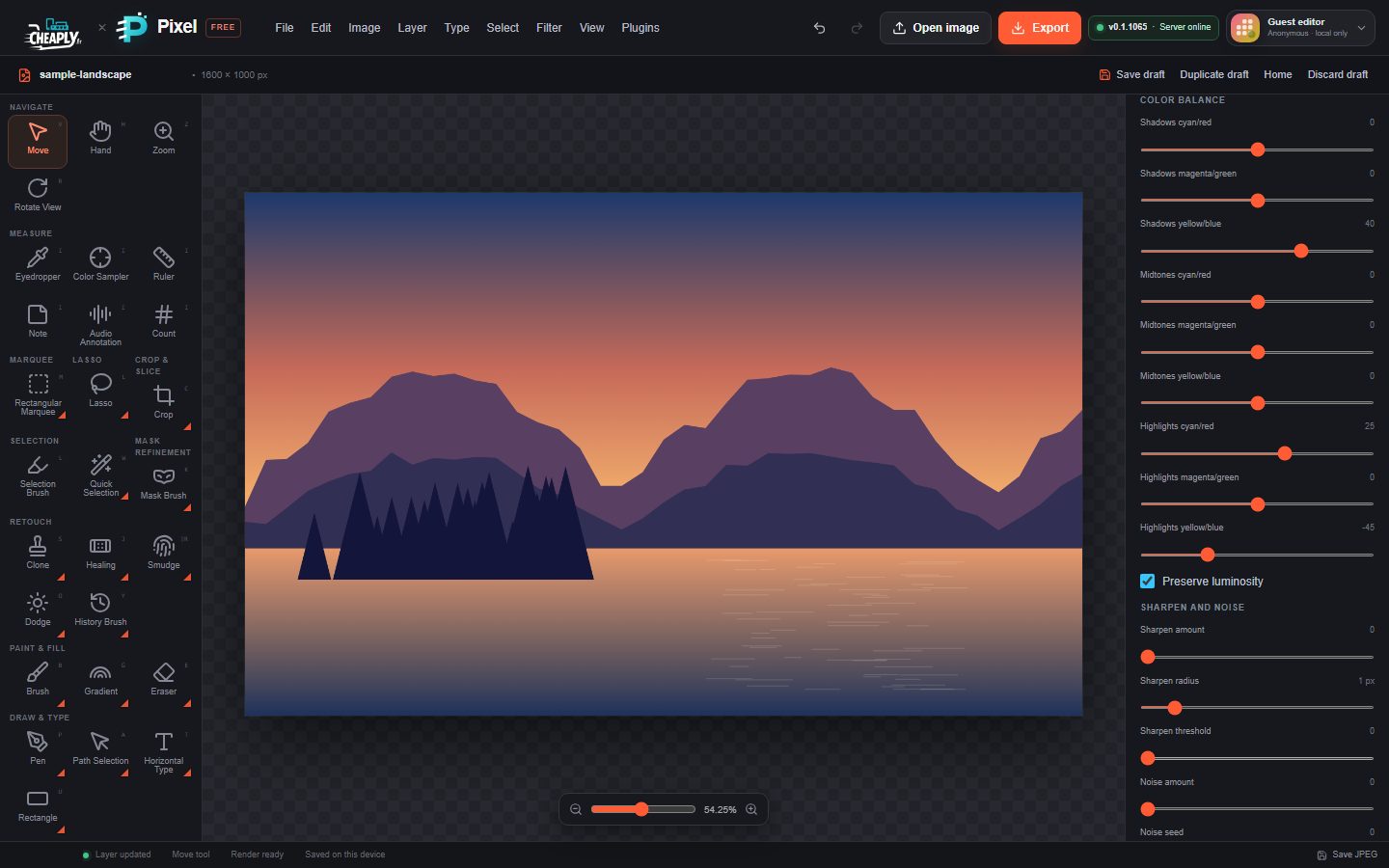
| Control | Range | What it does |
|---|---|---|
| Shadows / Midtones / Highlights cyan/red | −100 to 100 | Negative adds cyan, positive adds red. |
| Shadows / Midtones / Highlights magenta/green | −100 to 100 | Negative adds magenta, positive adds green. |
| Shadows / Midtones / Highlights yellow/blue | −100 to 100 | Negative adds yellow, positive adds blue. |
| Preserve luminosity | on/off | On (the default) keeps the brightness of each pixel while its colour shifts. |
Still stuck? See Troubleshooting or report a problem.