
History panel
Use the History panel to jump back to any earlier state of your document, understand what is kept after a reload, and free memory with Purge Undo History.
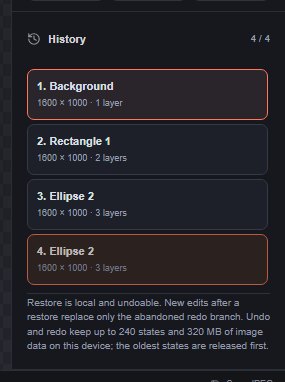
The History panel lists the states of your document, from the moment you opened it to your latest edit. Click any state to go back to it.
#Open the panel
In the properties sidebar, click History under More panels. On a phone, open the properties sheet at the bottom of the screen first.
The counter at the top shows the current position, for example 4 / 4.
#Read the list
Each state shows:
- its number and the name of the layer that was active at that moment;
- the canvas size and the number of layers.
The first entry is the document as you opened it. The current state is highlighted and cannot be clicked.
#Go back to a state
- Click an entry. The document returns to that state.
- Carry on editing from there, or click a later entry (or use Edit > Redo) to go forward again.
Going back is itself undoable. If you make a new edit after going back, the later states you skipped are discarded and the new edit continues from there, just as with Undo.
The same steps are available with Edit > Undo (Ctrl+Z), Edit > Redo (Ctrl+Y or Ctrl+Shift+Z) and Edit > Toggle Last State (Ctrl+Alt+Z). See Undo, redo and history basics.
#How much history is kept
- In memory: up to 240 states, limited by how much image data they hold: 320 MB on a desktop, 128 MB on phones and devices with 4 GB of memory or less, 96 MB with 2 GB or less. The oldest states are released first. The note under the list shows the limits for your device.
- After a reload: your draft keeps a window of up to 24 states around the current one. When some states are kept in memory only, the panel says which steps are saved on this device; the others are not restored after a reload.
#Purge Undo History
Edit > Purge Undo History… clears every undo and redo state except the current one and frees the memory they used. Your layers, your current image and your draft are kept.
- Choose Edit > Purge Undo History….
- Read the confirmation and click Purge history.
Still stuck? See Troubleshooting or report a problem.