
Draw with the Pencil tool
Draw hard-edged lines with the Pencil tool, for pixel art, sketches and crisp details.
The Pencil paints like the Brush but always with a hard edge, without the soft fade of a brush. Use it for pixel art, crisp outlines and sketching.
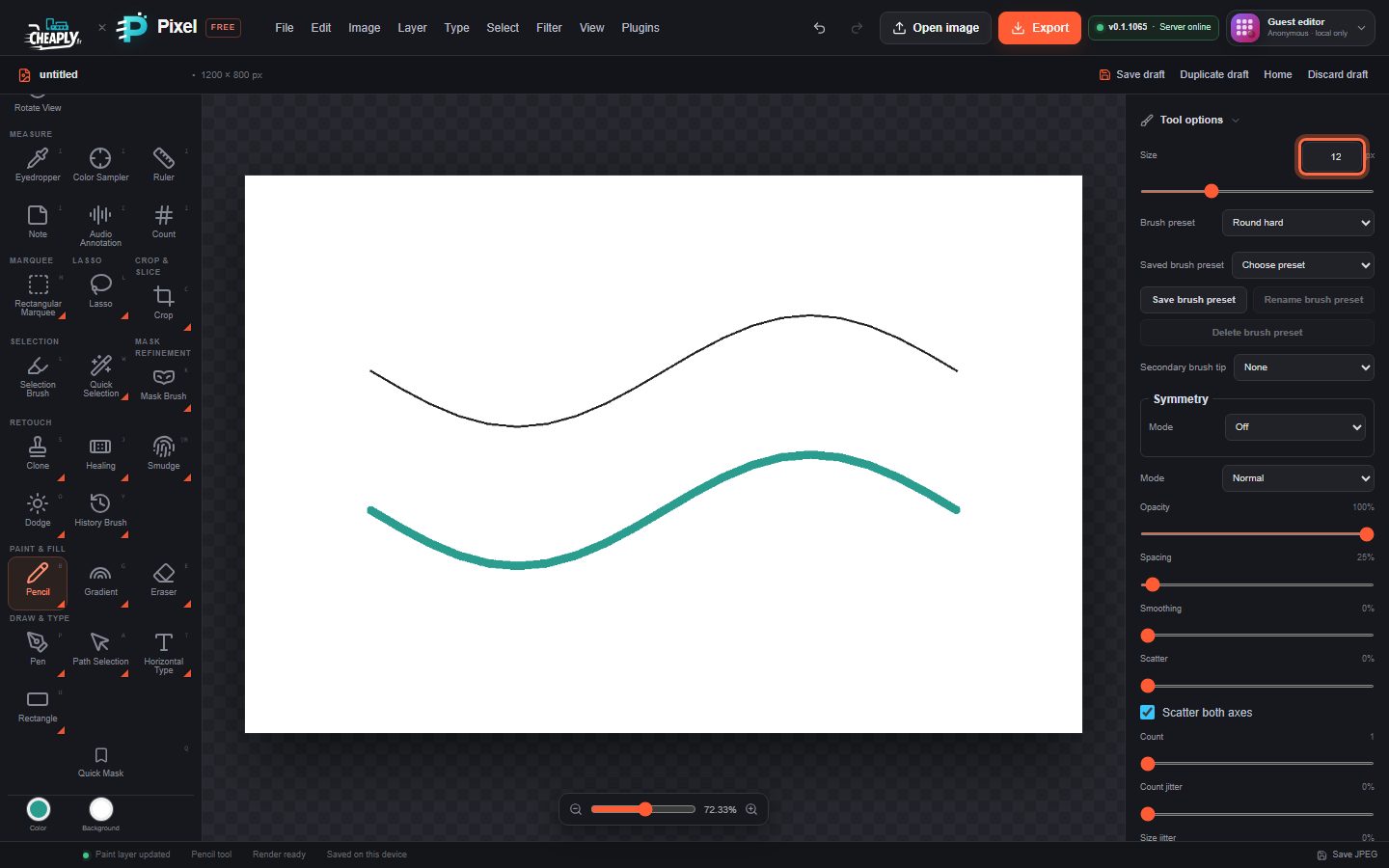
#Draw with the Pencil
- Choose the Pencil from the Brush flyout: press and hold (or right-click) the Brush button in the toolbar and choose Pencil, or press B until it is selected.
- Choose a colour in the Color well.
- Set Size in Tool options. A size of 1 px draws single pixels.
- Drag on the canvas.
#How the Pencil differs from the Brush
- There is no Hardness option: the edge is always hard.
- The Pressure affects size and Pressure affects opacity options are not shown.
- There is no Silk strands option.
Everything else works as for the Brush: Mode, Opacity, Flow, Spacing, Smoothing, scatter, count, jitter and colour dynamics, texture, the brush preset library and Paint symmetry. See Brush settings and dynamics.
Like the Brush, the Pencil paints only inside an active selection and each stroke is one undo step.
Still stuck? See Troubleshooting or report a problem.