
Draw gradients with the Gradient tool
Drag to fill a layer or selection with a linear, radial, angle, reflected or diamond gradient, with extra colour stops, blend mode, opacity, noise and dither.
The Gradient tool fills the active layer, or the selection, with a smooth blend of colours. The gradient starts with the foreground colour where you press and ends where you release.
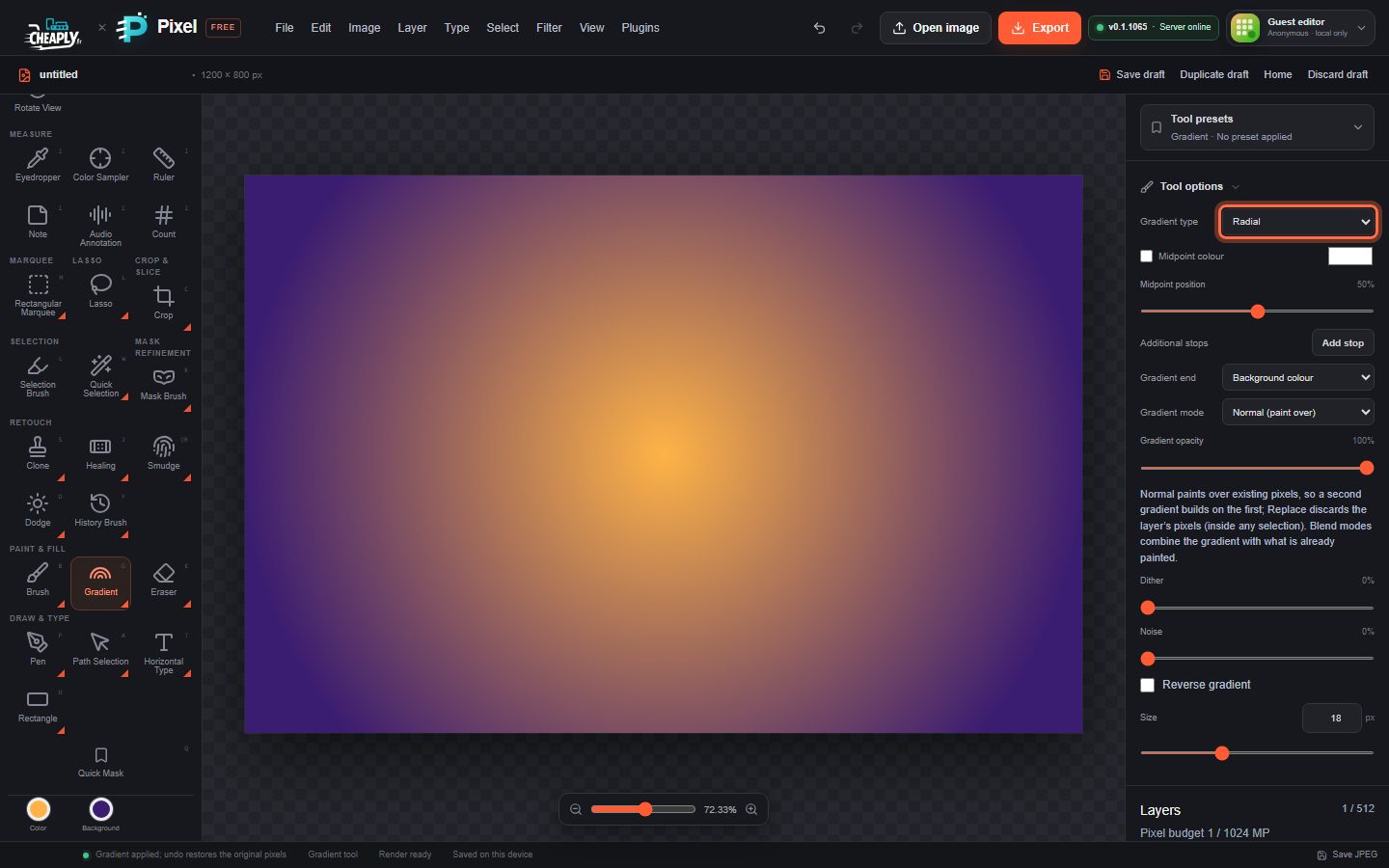
#Draw a gradient
- Choose the Gradient tool in the Paint & Fill group, or press G. (G again switches to the Fill tool.)
- Set the Color well to the start colour. For a two-colour gradient, set the Background well too and choose Gradient end > Background colour.
- Choose a Gradient type.
- Optionally make a selection to limit the gradient.
- Drag on the canvas. A live preview follows the pointer; the gradient is applied when you release.
#Gradient types
| Type | Shape |
|---|---|
| Linear | Changes along the line you drag. |
| Radial | Circles around the start point; the drag length is the radius. |
| Angle | Sweeps around the start point, starting from the drag direction. A hard seam lies along the drag line. |
| Reflected | A linear gradient mirrored on both sides of the start point. |
| Diamond | A diamond shape around the start point, with a corner at the end of the drag. |
#Options
| Option | What it does |
|---|---|
| Midpoint colour | Tick the box and choose a colour to add a third colour between the start and end. |
| Midpoint position | Where the midpoint colour sits, 1–99%. |
| Additional stops | Add stop adds a colour stop with its own position and colour, up to six. Each stop has a remove button. Stops apply to Linear, Radial, Angle and Diamond. |
| Gradient end | Transparent (default) fades the colour next to the end into transparency. Background colour ends with the Background well colour. |
| Gradient mode | Normal (paint over) paints over the layer; Replace discards the layer's pixels (inside any selection) and leaves only the gradient. The blend modes Multiply, Screen, Overlay, Soft light, Hard light, Colour dodge, Linear dodge (add), Colour burn, Darken, Lighten, Difference and Exclusion combine the gradient with what is already painted. |
| Gradient opacity | Makes the whole gradient more transparent. |
| Dither | Adds a fine variation that reduces visible banding in smooth gradients. |
| Noise | Adds random-looking colour noise to the gradient. |
| Reverse gradient | Swaps the start and end colours. |
Noise and dither are deterministic and only change the gradient's own pixels, not the layer underneath.
#Good to know
- Each gradient is one undo step.
- With a selection, the gradient changes only pixels inside it, and a feathered edge blends smoothly.
- On very large layers, the live preview is drawn at a reduced resolution; the final gradient is always rendered at full resolution.
- To keep the gradient separate from your photo, draw it on a new layer (Layer > New Paint Layer) and adjust its opacity or blend mode in the Layers panel.
Still stuck? See Troubleshooting or report a problem.