
Action recipes
Record a sequence of menu commands as an action recipe, replay it on any document with one click, or apply it to a batch of images.
An action recipe is a saved list of editor commands, such as a filter, an auto adjustment and a flip. Record it once, then replay it whenever you need the same treatment again.
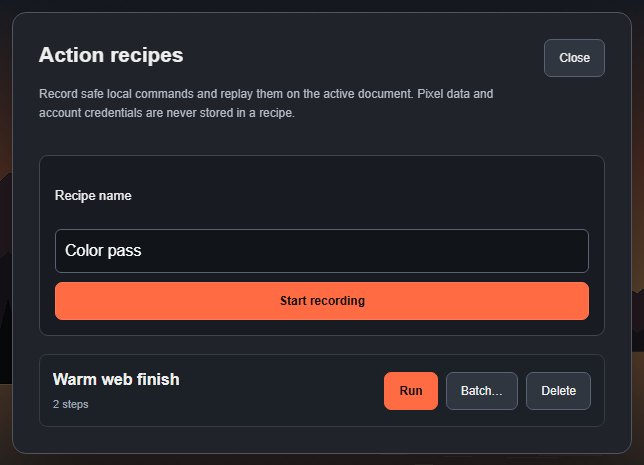
#Record a recipe
- Choose Edit > Action recipes….
- Enter a Recipe name and click Start recording.
- Click Close. Recording continues while the dialog is closed.
- Use the menu commands you want to record, for example Filter > Warm and then Filter > Sharpen.
- Open Edit > Action recipes… again. The dialog shows "Recording … (N steps)". Click Stop recording.
The recipe is listed with its number of steps.
#What can be recorded
Recipes record commands that give the same result every time:
- filters from the Filter menu, together with their settings such as amount, radius, angle and centre;
- Auto Tone, Auto Contrast and Auto Color, and Reset adjustments;
- rotating and flipping the image;
- selection commands such as All, Deselect and Inverse, and layer selection commands;
- layer mask commands (invert, disable, remove), Lock Layers, Merge Layers, Merge Visible and Flatten Image.
Painting strokes, tool gestures, commands that open a file or export, and most dialogs are not recorded. A recipe holds up to 64 steps.
#Replay a recipe
- Open the document and select the layer you want to change.
- Choose Edit > Action recipes….
- Click Run next to the recipe.
The steps run in order through the normal commands, so each one appears in the History panel and can be undone. If a step cannot run (for example, the layer is locked or nothing is selected), the replay stops at that step and the status bar says which one failed.
#Apply a recipe to many images
Click Batch… next to a recipe and choose image files from your device. The recipe is applied to each file in turn (up to 64 files), and the flattened results are collected in a ZIP to download. A file that fails is reported without stopping the others. See Batch processing.
#Delete a recipe
Click Delete next to the recipe. It is removed immediately.
#Where recipes are stored
Recipes are saved in this browser, separately from your documents. They contain only command names and settings: no pixels, images, metadata or account details. They are not included in project files and are not synced to other devices.
Still stuck? See Troubleshooting or report a problem.